
240 App Store Screenshots from One Script
· 7 min read · #ios #app-store #tooling
I have four small iOS apps: Treble Trouble, Mathness (opens in a new tab), Solve It (opens in a new tab) and Mahbanou. Several are localized, Treble Trouble into 16 languages, 15 of which the App Store supports. The App Store wants screenshots for every language you list, at specific sizes, for iPhone and iPad.
For Treble Trouble alone that’s 15 languages × 2 devices × 8 screens: 240 images. And every time the design changes, they’re all out of date.
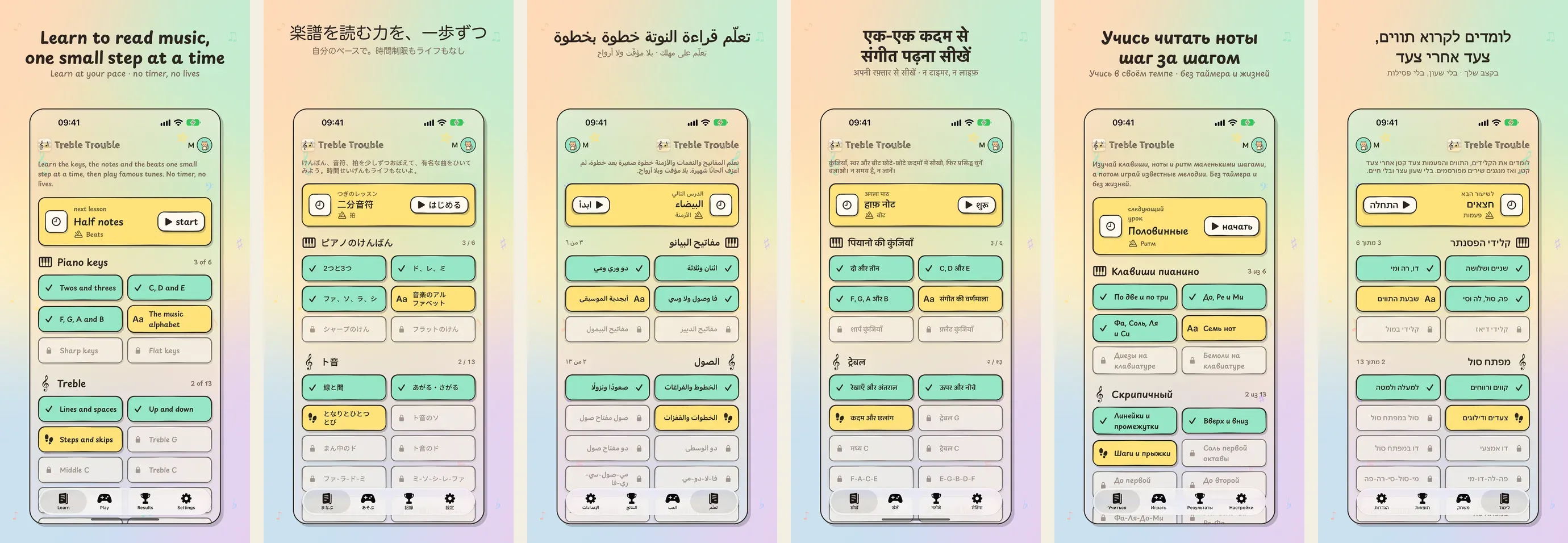
I don’t make any of them by hand. Each app has a script that captures its screenshots from the Simulator, and a second script that frames them with a caption. The examples below are Treble Trouble’s. Here’s the same screen for six of those languages, straight out of the pipeline:
The pipeline
It’s two steps, one shell script and one Python script, and they’re deliberately separate. Capturing is slow and needs a booted simulator. Framing is fast and only needs the PNGs, so I can tweak a caption or a color and reframe everything quickly without recapturing anything.
Step 1: make the app screenshot itself
The trick that makes capture scriptable is teaching the app to open anywhere, in any state, from its launch arguments. Every one of my apps has a small, #if DEBUG-only file that reads flags like these (Treble Trouble’s, prefixed -tt-) when it starts:
-tt-reset -tt-full -tt-nosplash -tt-player Mia:cat \
-tt-lang ar -tt-screen lesson:treble-all -tt-phase practiceThat says: wipe saved state, unlock the full version, skip the splash screen, sign in as a sample player called Mia (with a cat avatar, so the player button shows), switch to Arabic, and open the “name the note” lesson in practice mode. There’s a flag for every screen and state a screenshot needs, plus -tt-demo to fill in believable progress and scores. None of it exists in Release builds.
With that in place, the capture script is a loop:
for device in iphone ipad; do
xcrun simctl boot $sim
xcrun simctl status_bar $sim override --time "9:41" \
--batteryState charged --batteryLevel 100 --wifiBars 3 --cellularBars 4
xcrun simctl install $sim $APP
for lang in $LANGS; do
for screen in $SCREENS; do
xcrun simctl terminate $sim $BUNDLE
xcrun simctl launch $sim $BUNDLE -tt-reset -tt-lang $lang $screen_args
sleep 4
xcrun simctl io $sim screenshot raw/$device/$lang/$screen.png
done
done
doneA few details that took a while to get right:
- Every shot starts from scratch. The app is terminated and relaunched with
-tt-resetfor every single screenshot, so nothing leaks from one shot into the next. It’s slower, but it means any screenshot can be retaken on its own.ONLY=03 ./scripts/store-shots.shretakes just screen 3 in every language. - The status bar is pinned.
simctl status_bar overridesets the time and fills the battery and signal bars, so every frame shows a clean status bar instead of whatever the Mac happened to be doing. - Each app has its own simulators. Treble Trouble captures on simulators named for it (“TT iPhone 18 Pro Max” and “TT iPad Pro 13”). That sounds fussy, but it means two apps can capture at the same time without fighting over a device.
- The capture build is its own Debug build. My Debug builds normally install as a separate “Dev” app with a ribbon on its icon, so they can sit beside the App Store version. The screenshot script builds a copy with the store name instead, so nothing in the capture says “Dev”.
- The screen list lives in the script. Each entry is a file name and its launch arguments. Treble Trouble’s eighth screen even varies by language: it shows the other note-naming system, so solfège (Do Re Mi) where letters are the default, and letters where solfège is.
Step 2: frame them
The raw captures are just phone screens. The framing script turns each one into a store image at exactly the size Apple asks for (1320 × 2868 for a 6.9-inch iPhone, 2064 × 2752 for a 13-inch iPad): a paper background in the app’s style, a caption at the top, and the screenshot below it with rounded corners, a sticker-style shadow and a crayon outline.
Most of the script is about text, because captions in 15 languages are where things get interesting.
- A font per script. Latin and Cyrillic captions use the app’s own rounded typeface. Japanese, Chinese, Korean and Hindi each get a system font that matches what the app uses on device.
- Right to left. Arabic and Hebrew are laid out right to left, using Pillow’s raqm text layout, which handles bidirectional text and Arabic letter shaping properly. Apple’s own Arabic and Hebrew fonts don’t include Latin letters or digits, and a caption like “C D E” needs both, so those two use a font that covers everything, made bold with a stroke.
- Line breaks that read well. Captions wrap onto at most two lines, and the script picks the break that makes the two lines most even, so there’s never one lonely word underneath. Japanese and Chinese wrap by character, preferring to break after a comma. Runs like “C D E” are kept together with non-breaking spaces.
Then there’s the Dynamic Island. The Simulator draws it on some captures and not on others, so a set of framed screenshots would randomly have a black pill at the top of some of them. The framing script paints it out:
It scans down the middle column of the top few percent of the image for dark rows, walks left and right from each one to find the pill’s edges, and fills that area by blending the background colors from either side. It only touches the rows it found and never looks at the status bar icons, which sit well outside the pill.
Step 3: lint the listing
The screenshots are half of a store listing. The other half is text, and App Store Connect has strict limits: 30 characters for the name, 30 for the subtitle, 170 for promotional text, 100 for keywords and 4,000 for the description, in every language.
So the listing text lives in a script too, which writes out a paste-ready file and refuses to write it if anything is wrong:
- Every field in every language is checked against its limit.
- Keywords can’t repeat words already in the name or subtitle, since those are indexed anyway.
- No prices appear anywhere, per App Review’s rules on metadata.
- Nothing may suggest that children are the main audience. These are learning apps, but they’re not in Apple’s Kids category, and App Review is strict about that line. The check is a regular expression of “kids” and “children” in all 15 languages, from niños and enfants to 子ども and أطفال.
The one rule I added later
A full pass is slow: for Treble Trouble that’s 240 launches, plus translations. So there’s a rule in each app’s notes for me and for the coding agents I work with: don’t regenerate store assets while a design is still changing. Say that they’ll need a refresh, wait until the design is settled, and then retake only the affected screens and languages. A quick single screenshot to check a layout is fine; a full pass is not.
What I’d copy
- Debug launch arguments for every screen and state. They’re useful far beyond screenshots, for UI tests and for checking layouts quickly.
- Separate capture from framing. Recapturing is slow; reframing should be instant.
- Pin everything that isn’t the app: the status bar, the device, the name on the icon, the sample data.
- Check the text with the same rigor as the code. Character limits and review rules are easy to encode and painful to discover in a rejection email.
None of this is clever on its own. Together it means a design change costs me one command and a coffee, instead of a weekend in a design tool.
Get new posts by email
One short email when a post goes out, about once a week. Unsubscribe any time.
 Written by Zubin Khavarian