
One Sample Clock for Piano, Metronome and Sound Effects
· 6 min read · #audio #ios #swift
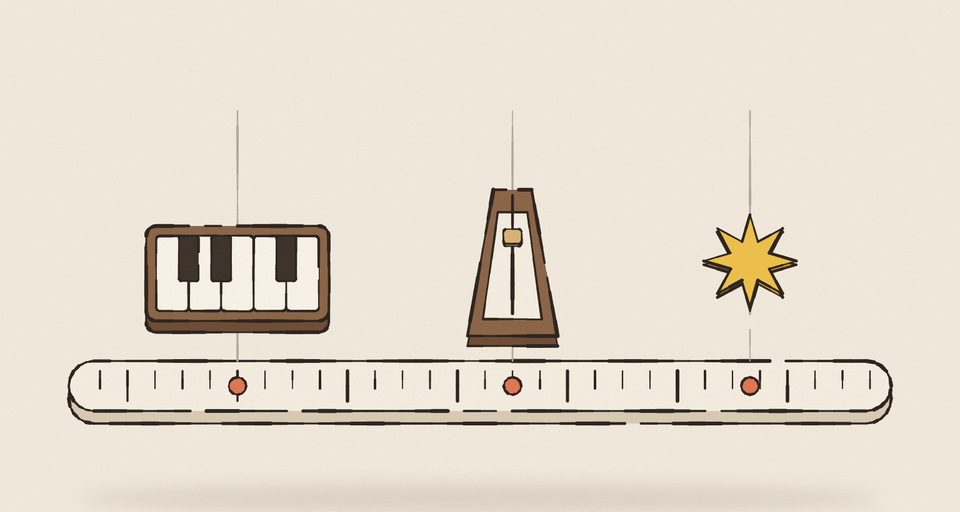
Treble Trouble teaches children to read music on iPhone and iPad. It plays piano notes, it keeps a metronome ticking under the rhythm lessons, and it makes little sounds when you tap things, get an answer right or run out of time.
The easy way to build that on iOS is a handful of separate players: an AVAudioPlayer per sound, a Timer for the metronome. It works right up until a rhythm lesson, where a child is asked to tap along with the beat and the app has to decide whether they were on time. Then you discover that every one of those players keeps its own idea of time.
This is the iOS side of the soundscapes series: not ambience this time, but timing.
Why separate players drift
A Timer fires on the main run loop, whenever the main thread gets to it. That’s usually close to the time you asked for, and occasionally several milliseconds late because the app was busy laying out a view. An audio player starts when the audio system gets around to it, after its own buffering. Neither is wrong, but they don’t agree with each other, and the ear is very good at hearing a click that’s a few milliseconds off a note.
For a music app, the clicks and the notes have to come from the same place.
One render callback
So every sound in Treble Trouble goes through one AVAudioSourceNode. It’s the lowest-level way to make sound in AVAudioEngine that still feels like Swift: the system calls your closure on its audio thread whenever it needs the next buffer of samples, and you fill it in.
Everything the app plays is a voice in a list that the callback mixes:
- Piano notes are recorded samples. There are six recordings (every C from C2 to C6, plus an A4), and each note plays the nearest one, sped up or slowed down by
2^(semitones / 12)to hit the right pitch. A note can be damped over 60 milliseconds so a cut-off doesn’t click. - Metronome clicks aren’t recordings at all. They’re synthesized right inside the render callback: a short triangle-wave blip that drops in pitch and decays in 80 milliseconds, higher and louder on the downbeat.
- Sound effects are synthesized too, but ahead of time, at launch.
The part that matters for timing is how clicks get into the list. The metronome isn’t a timer that adds a click every so often. It’s a description (when the first beat is, how many samples per beat, how many beats per bar), and on every callback the mixer works out which beats fall inside the buffer it’s about to fill and starts each click at its exact sample. At 80 beats per minute and 48,000 samples a second, a beat is 36,000 samples long, and every click starts on the right one.
The frame counter is the clock
After each callback, the mixer adds the buffer’s length to a running frame count. That count is the app’s audio clock: seconds are frames divided by the sample rate.
Buffers arrive every few milliseconds, which is too coarse for judging a tap, so reading the clock also adds the time since the last callback, measured with the system’s high-resolution host clock and capped at 50 milliseconds so a stalled audio thread can’t run the clock away.
Everything time-related reads from that one clock. The metronome’s beat grid says where each beat falls on it. The pulsing dots on screen ask which beat has just clicked, so the visuals follow the sound instead of the other way round. And when a child taps along, the tap gets a time on the same clock the click came from.
Judging taps fairly
There’s one more gap to close. A click is rendered into a buffer at its beat, but it doesn’t reach the child’s ears straight away: it has to get through the rest of the output path, which takes a few milliseconds more on the speaker and quite a lot more on Bluetooth headphones. The child taps to what they hear, not to what was rendered.
So a tap is judged at the clock time minus the output latency, which iOS reports as the audio session’s outputLatency plus its I/O buffer duration. The correction matters most on Bluetooth headphones, where that latency is largest.
Every sound effect is synthesized
The app ships piano recordings, but no sound effect files at all. Partly that’s because iOS has no public library of UI sounds. Mostly it’s because synthesized effects can be made to belong to the music.
Every effect is built from one sound: a struck bar, which is a sine wave plus a quieter overtone at about four times its pitch (the bright partial that makes a marimba sound like a marimba), with a one-millisecond attack so it doesn’t click and an exponential ring-out. All of them are tuned to C major, like the tunes the app teaches.
- A tap is a single quick C.
- A correct answer is a rising fifth: “ding-ding”.
- A streak is a quick pentatonic run up.
- A win is a little fanfare, G, C, E, and then the C major chord rings.
- Running out of time is a gentle E, D, C, not a sad trombone.
- Only a wrong answer breaks the pattern, with a soft, round falling “uh-oh” hum, because it should sound different.
One lesson from tuning these: when a correct answer has a note behind it, like the note on the staff or the key that was pressed, the app plays that piano note instead of the chime. The two together clashed, and hearing the right note is a better reward anyway.
A nice side effect: the effects are generated from code, so there’s a test mode that writes every one of them out as a WAV file to listen to, and changing the whole sound palette is a matter of editing some frequencies.
What I’d take from this
- If timing matters, use one clock. Render every sound that has to line up from a single callback, and count frames.
- Schedule by sample, not by timer. Describe the rhythm, and let the render callback place each event in the buffer where it falls.
- Drive the visuals from the audio clock, not the other way round.
- Judge input against what the listener heard, which means subtracting output latency.
- Consider synthesizing your UI sounds. They’ll never clash with your music, they cost no bundle size, and they’re easy to tune.
The whole mixer is about 350 lines of Swift, and the rhythm lessons are where it pays off: the click, the notes, the pulsing dots and the child’s taps all agree on what time it is.
Get new posts by email
One short email when a post goes out, about once a week. Unsubscribe any time.
 Written by Zubin Khavarian